


This quick guide will give you 12 Zoom hacks that’ll save you time and help you communicate more clearly with your meeting participants.
You want your Zoom meetings to feel like a real face-to-face meeting, but they feel more like a funeral?
Been there.
Done that.
Here’s the good news, though: It doesn’t have to be that way.
There are actually some tried-and-true Zoom hacks you can use to make the most of each and every Zoom call (and hopefully turn more of them into sales).
Let’s get started!
- Hack #1: Set A Waiting Room
- Hack #2: Schedule Your Meetings From Your CRM
- Hack #3: Add a Custom QR Code to Your Background
- Hack #4: Learn The Most Helpful Shortcuts
- Hack #5: Use Breakout Rooms
- Hack #6: Use Your CRM To Organize Notes And Send Follow-Ups
- Hack #7: Record Your Meetings
- Hack #8: Use The Whiteboard
- Hack #9: Use A Co-Host For Peace Of Mind
- Hack #10: Allow Someone Else To Schedule Your Meetings
- Hack #11: Gauge Your Participants’ Interest With AI
- Hack #12: Set Up An Intro Video
- Frequently Asked Questions
Hack #1: Set A Waiting Room
Before starting your meeting, set up a waiting room to prevent any unexpected guests from joining.
With this option, you can check the attendee’s identities before granting them permission to join.
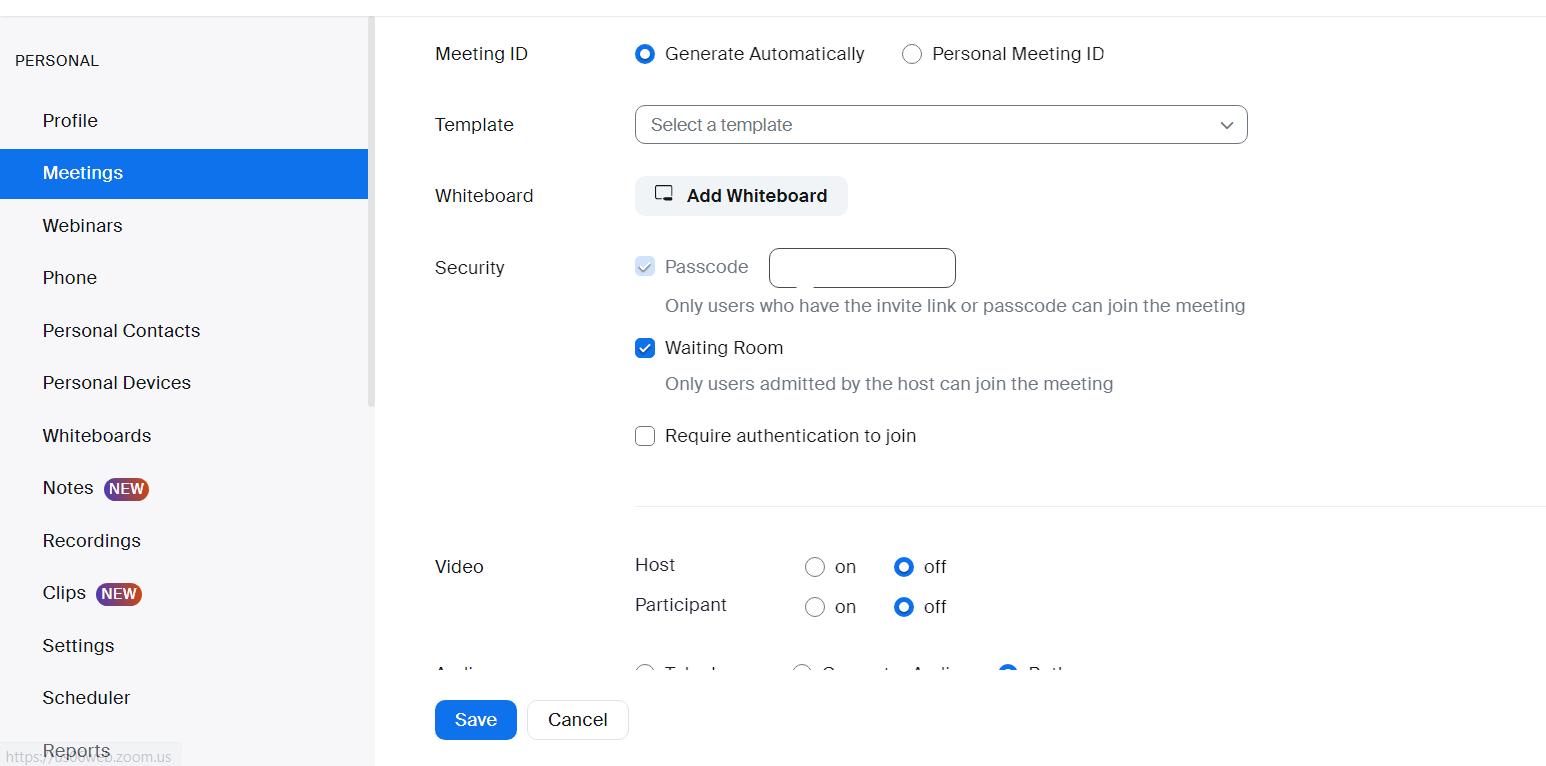
To enable this feature, check the “Waiting Room” box when creating your meeting.
During the meeting, you’ll get a notification telling you someone has joined the waiting room.
You can quickly review their ID to ensure it’s someone who’s supposed to be in the meeting before admitting them.
Hack #2: Schedule Your Meetings From Your CRM
Scheduling a meeting using a scheduler connected to your Customer Relationship Management (CRM) platform saves you time and effort.
Whether you’re contacting your regular clients or new leads, scheduling Zoom meetings from your CRM saves you time by keeping all your meeting planning, notes, and sales information in one place.
Using a CRM like VipeCloud allows you to see which clients attended Zoom calls and schedule Zoom meetings from there.
To do so, download the VipeCloud extension from Zoom to add extra integrations between your VipeCloud CRM and your Zoom account.
Hack #3: Add a Custom QR Code to Your Background
Adding a customized QR code to your background can be beneficial when you want to share a call to action with your meeting attendees.
All they need to do is scan the code from their phone to take your next desired step.
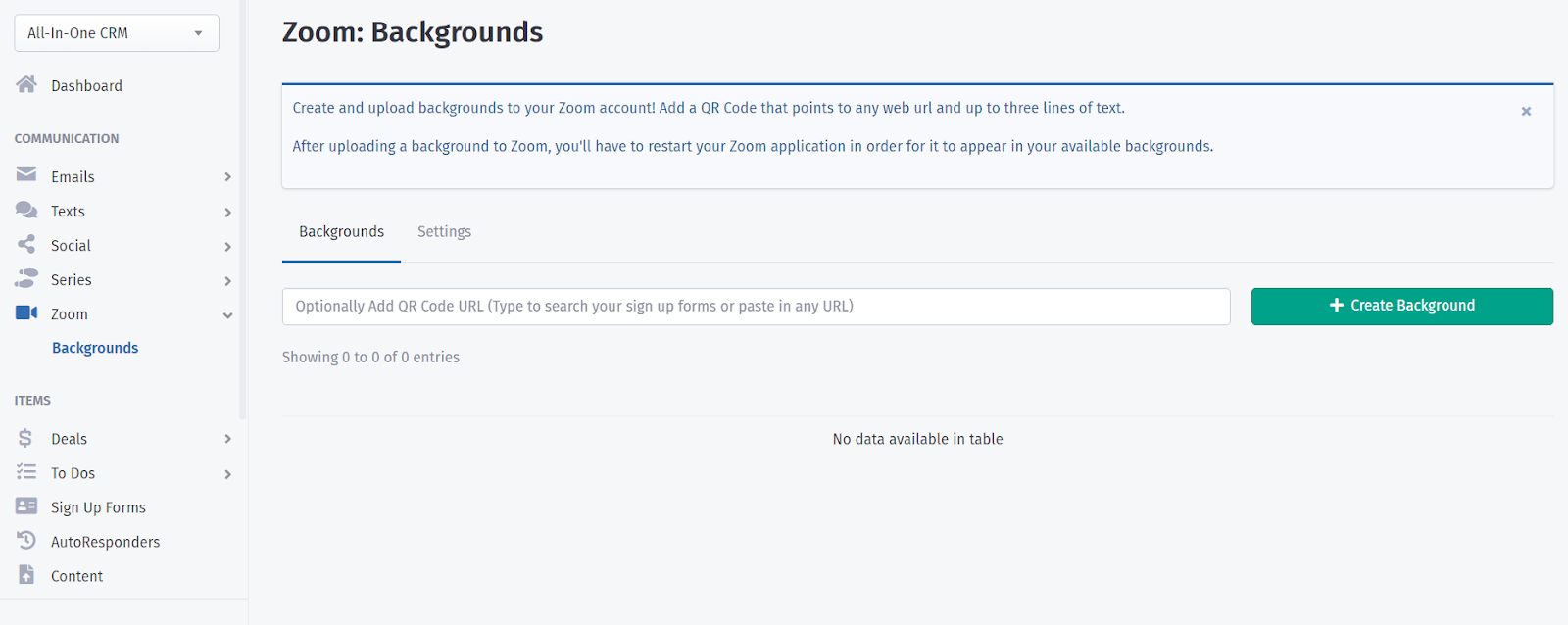
An easy way to accomplish this is from within VipeCloud’s Zoom dashboard. Click “Backgrounds,” then click “Create Background,” or simply copy the URL that you want to turn into a QR code into the text box.
This hack is particularly useful for webinars with many attendees.
It’s a quick and easy way to move them along in your sales funnel without any lag time after the meeting.
Hack #4: Learn The Most Helpful Shortcuts
Zoom is already a great tool, but learning its shortcuts makes it easier and more powerful.
Using shortcuts, you can avoid that awkward silence while you fiddle around trying to figure out how to mute yourself or share your screen.
Use the following shortcuts to keep your meeting running smoothly and make you look like a Zoom pro:
- Alt+V: Start/stop video
- Alt+A: Mute/unmute audio
- Alt+M: Mute/unmute audio for everyone except the host (perfect for when one of your attendees is blaring music in the background and forgot to mute themselves)
- Alt+P: Pause/resume recording
- Alt+Shift+i: Copy the invitation link (for when you need to invite someone last minute)
These are some of the most helpful Zoom keyboard shortcuts, but Zoom provides a complete list that I’d highly recommend looking over to see if there’s anything else that would be particularly helpful to you.
Hack #5: Use Breakout Rooms
Breakout rooms are a great way to address individual concerns more effectively during a meeting.
It allows the participants to split into smaller groups for discussion and then rejoin the main room.
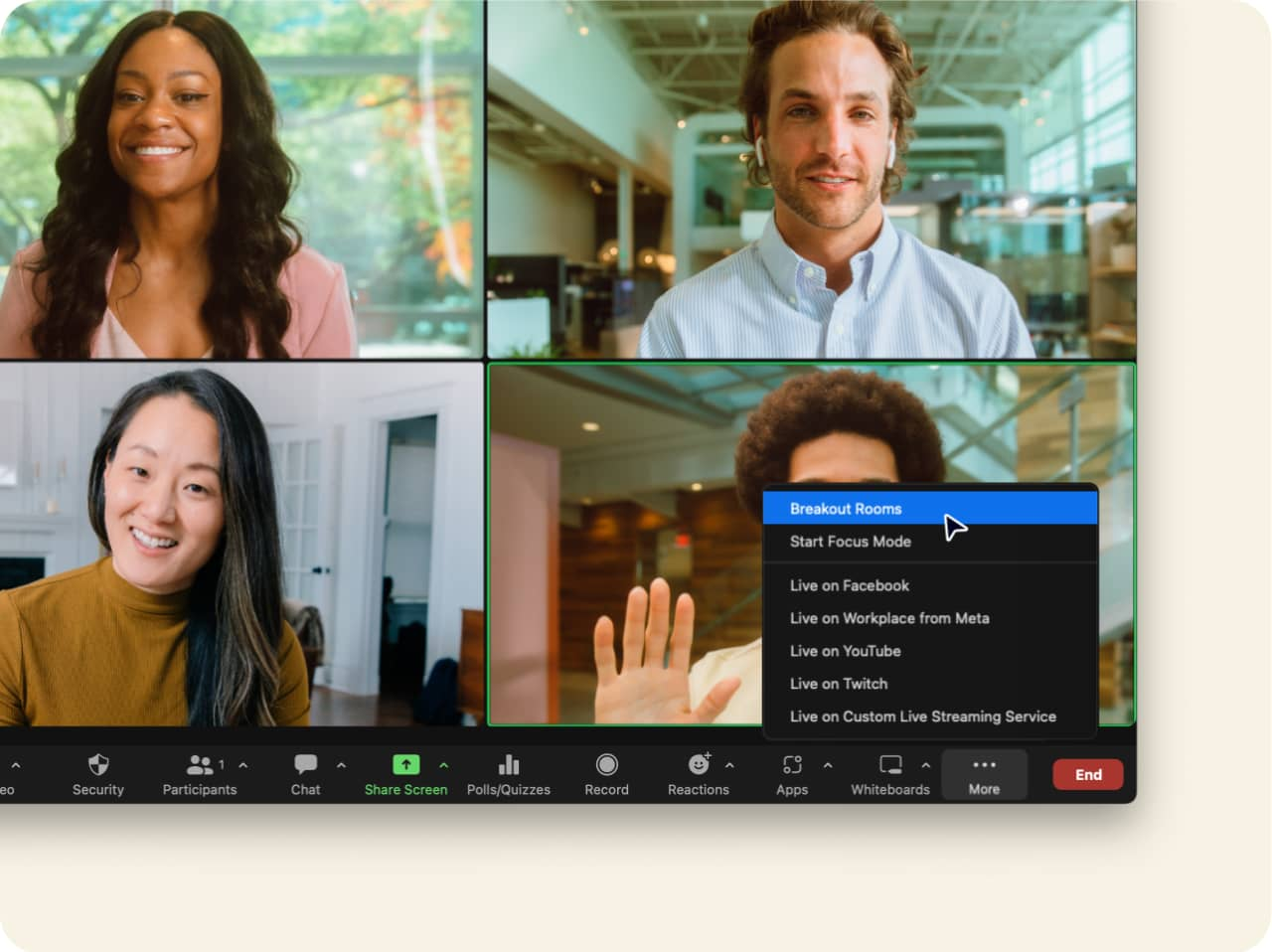
If you have a sales team on standby, this is a great way to end a webinar.
You can immediately invite anyone who’s interested in your product into a conversation with a salesperson without them even needing to leave the Zoom meeting.
To set up breakout rooms, click on “More” at the bottom of your meeting screen, then click on “Breakout Rooms.” You’ll then be prompted to choose who goes to which breakout room.
Hack #6: Use Your CRM To Organize Notes And Send Follow-Ups
After your meeting is done, the real work starts.
Keeping track of all your conversations and moving people along in your sales process are incredibly important parts of any meeting, but it’s easy to lose track of action items and next steps.
With a CRM, you can take notes and send follow-ups after the meeting – all in one place.
During the meeting or immediately after, you can add notes to your client’s contact in the CRM, allowing you to consolidate your data.
Using VipeCloud, you can also automatically schedule the appropriate follow-ups, allowing you to take quick action with any meeting attendees directly from your CRM.
Hack #7: Record Your Meetings
Recording your meetings can serve as a valuable treasure trove of information about your sales conversations in the future.
With the Zoom recorder feature, you can revisit the essential aspects of the meeting and ensure that everyone is on the same page.
You can even use old sales meetings to train new salespeople or discuss strategies for improvement.
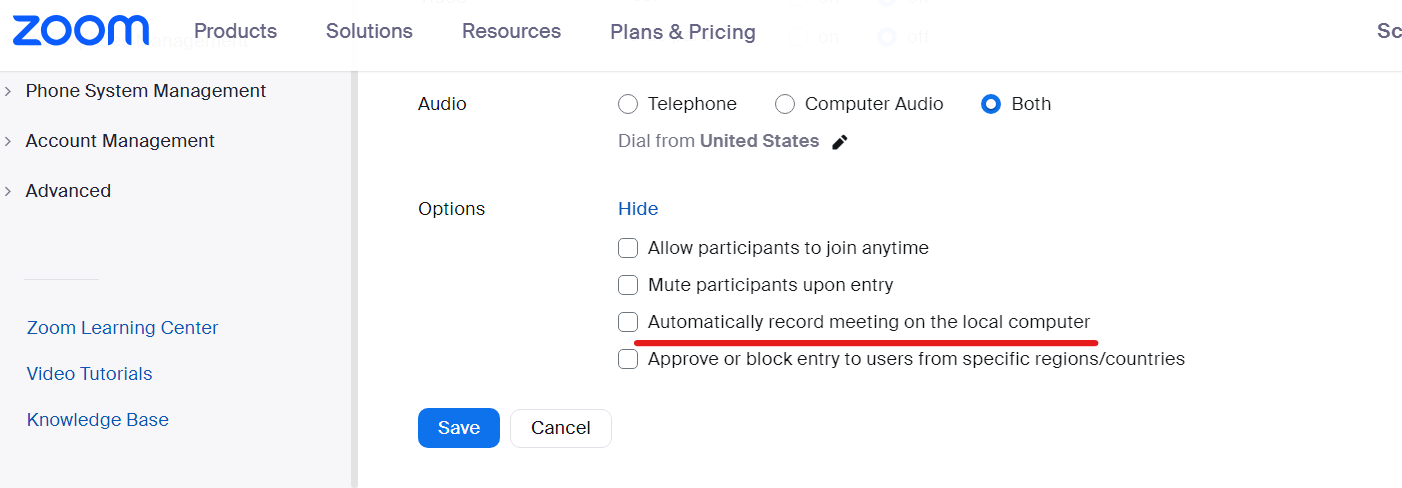
You can set Zoom to automatically record your meetings by selecting the “Automatically record meeting” tab under the options while creating a new meeting.
Note: Zoom will automatically ask participants to consent to the recording.
If you’ve already started your meeting and it’s not recording, click on the “Record” button at the bottom of your screen to start recording.
Hack #8: Use The Whiteboard
The whiteboard option in Zoom is an effective way to present ideas and explain concepts.
It serves as a visual aid and allows you to write visual notes and discussion points on the fly.
You can also use premade templates by selecting them in your Zoom meeting settings.
Use these templates for better organization and a more attractive note structure.
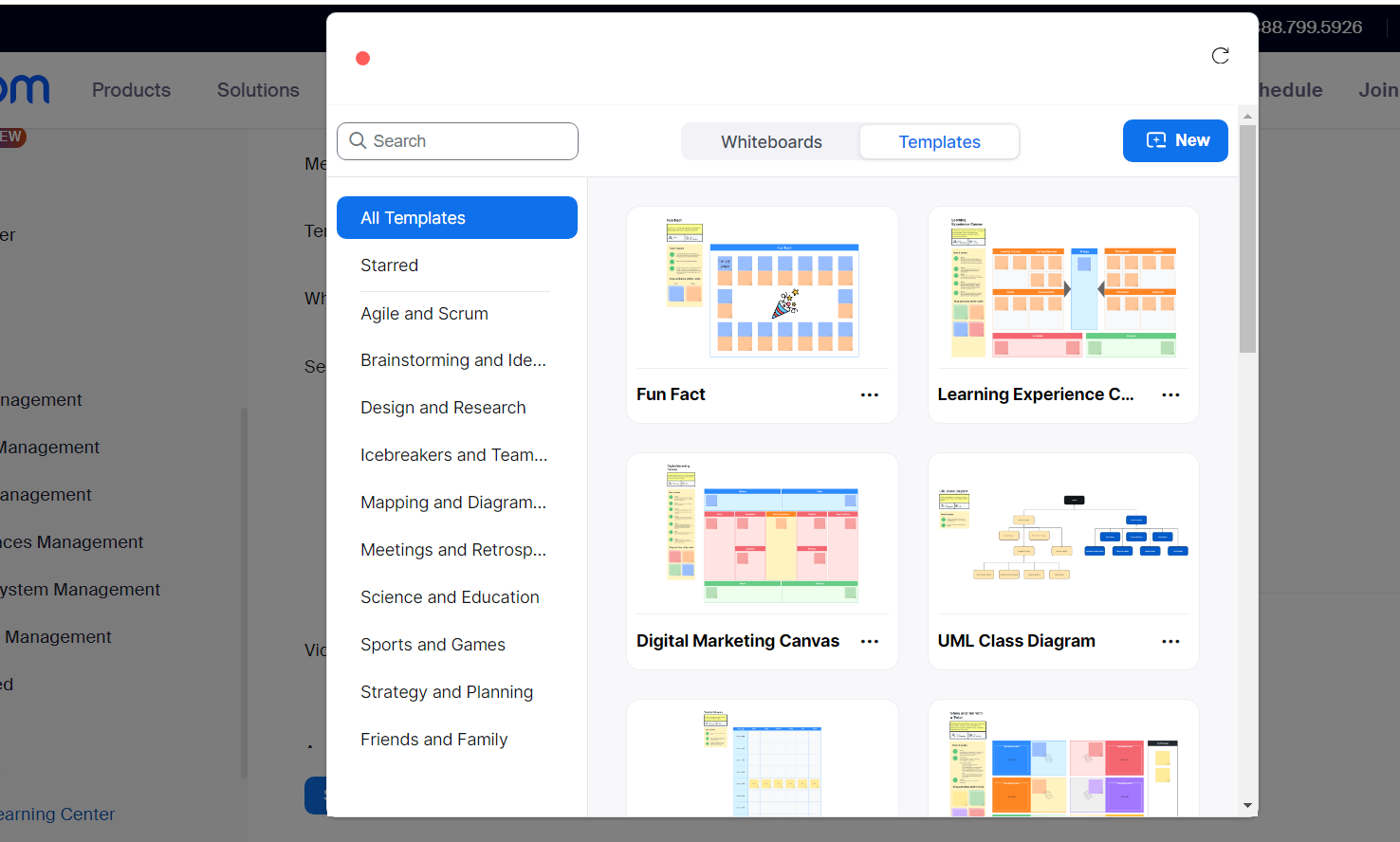
To enable this feature, click on the “Share screen” button at the bottom of the meeting, then select “Whiteboard.”
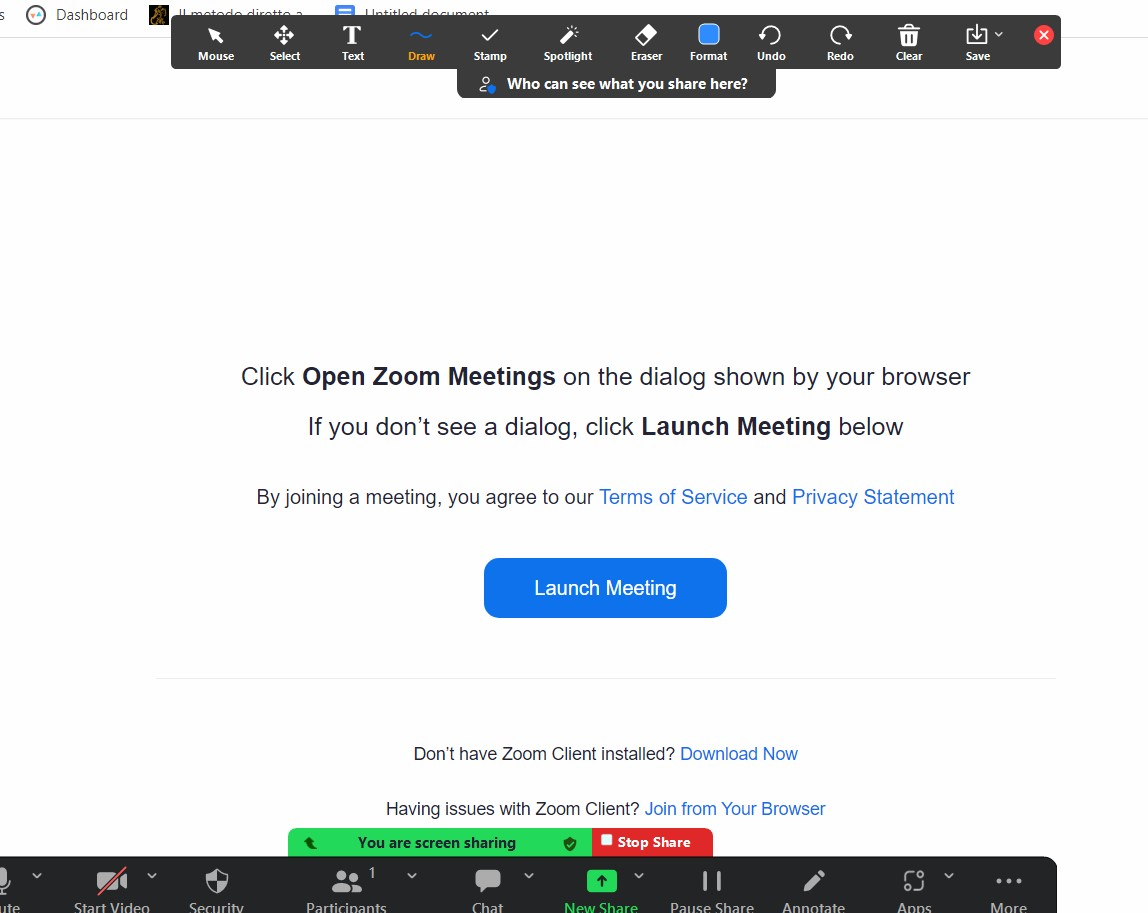
Doing so will allow the meeting host to draw on the whiteboard but will not allow attendees to do so.
If you want to also allow the participants to draw and annotate on your whiteboard, you need to specify that in the whiteboard settings under the “More” tab in your meeting.
Hack #9: Use A Co-Host For Peace Of Mind
Having a co-host for the meeting is beneficial for multiple reasons, but the main benefit is peace of mind.
Your co-host can help keep the meeting under control by monitoring comments, muting/unmuting participants, and even taking control if the primary host loses connection.
Any salesperson’s worst nightmare is experiencing technical difficulties during a sales call.
Adding a co-host ensures that your meeting will be able to proceed as scheduled even if your mic breaks, your internet goes out, or your cat decides to abruptly walk across your keyboard.
Hack #10: Allow Someone Else To Schedule Your Meetings
There are plenty of reasons why you might want to allow someone else to schedule your meetings for you.
Most often, it simply becomes too time-consuming to schedule meetings by yourself.
The ‘Assign scheduling privileges’ option in your Zoom account settings allows your assistant or colleague to schedule your meetings on your behalf.
You can find this option in settings under the “Other” tab.
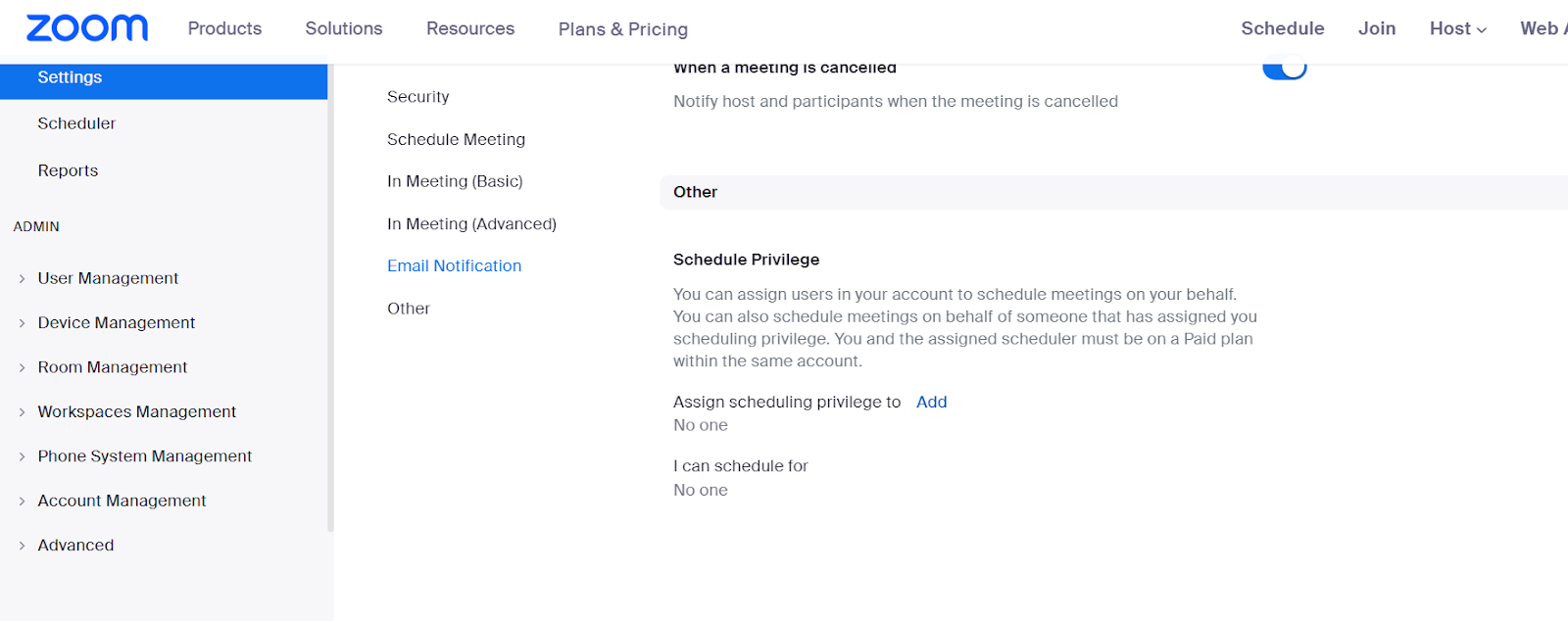
One note is that this option is only available to those with multiple users under the same account.
So if you have a business account with multiple users, you can only grant scheduling privileges to those under your business account.
Hack #11: Gauge Your Participants’ Interest With AI
With all the talk about AI in recent years, it’s no wonder that many companies are starting to use it to improve their Zoom meetings.
Using AI (Artificial Intelligence) can help you gauge your participants’ interest during your meeting.
This can help you identify which parts of your presentation were effective and which parts need improvement.
One of the most popular tools to accomplish this right now is Sybill, which is capable of breaking down your participants’ reactions to different moments in the sales meeting.
Did your participant lose interest after you mentioned prices? Did they get excited when you mentioned your newest features?
Sybill keeps track of these reactions and helps you capitalize on the good ones and minimize the bad ones.
Hack #12: Set Up An Intro Video
Setting up an introductory video can contribute to making the meeting more organized (it also just makes your company look put together, which is great for increasing your perceived value before a sales meeting).
This feature welcomes the attendees and sets the tone for the meeting while creating an engaging environment.
The best way to create an intro video for your Zoom meetings is through your waiting room settings. After enabling waiting rooms in your settings, click “Customize waiting room.” Doing so will pull up a preview of the waiting room where you can edit the look of your waiting room.
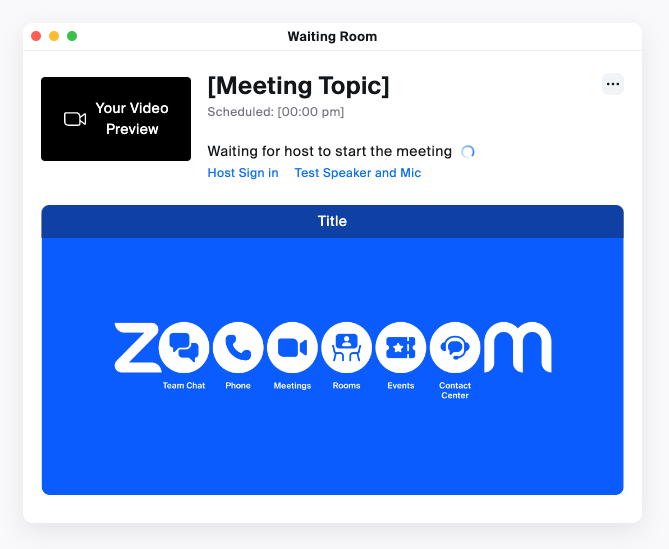
Add your video to your waiting room from this menu.
A great strategy is to have your co-host join the waiting room with your participants to help direct their attention to the video, then open the meeting as soon as the video is done.
FAQ
Is there a way to see who attended a Zoom meeting?
You can see who attended your previous Zoom meetings (if you’re a paid user) by looking in your reports tab.
Click Reports, then Usage, then click on the participants column to find out who attended your meeting.
Alternatively, you should be able to see who attended by checking your recordings if you have them.
How do you get around Zoom in 40 minutes?
If you’re a user of the free version of Zoom, you may be getting cut off after 40 minutes.
Unfortunately, the only way to host a Zoom meeting longer than 40 minutes is by upgrading to a paid account.
How does Zoom track attendance?
Zoom tracks attendance in the Report tab of your paid account.
You can check on how many attendees each of your previous meetings had as well as who they were.
Each meeting attendee is also given an attentiveness score, so hosts can even tell how engaged each user was during the meeting.
How do I know if someone is recording my Zoom meeting?
Zoom will automatically display a “Recording” badge if a meeting is being recorded.
However, you should always alert your attendees verbally as well. The last thing you want is to make your attendees feel like you’re spying on them!
Ready To Up Your Zoom Game?
Your Zoom meetings are about to get a whole lot better!
Following these 12 tips should help you go from zero to hero on Zoom and make a better impression on your potential clients.
If you want access to the scheduling and CRM features mentioned in this article, I highly recommend signing up for a 15-day VipeCloud free trial to see how much it can help you out.
Happy Zooming!




Leave a Comment